
For many, Bitwarden is the top-tier password manager, especially when it comes to securely sharing login credentials with others. While sharing accounts isn’t always ideal, chances are you’ll eventually want to share access to a service—like Spotify—with family or friends. Bitwarden offers an “Organizations” feature that lets you share logins with another person for free. Sharing with a larger group is also available for a small fee.
To get started, create a Bitwarden account and download the extension for your browser. Once logged in through the extension, navigate to Settings, open Tools, and select the Bitwarden Web Vault. From there, open the Organizations section and click + New Organization to name the group of passwords you plan to share.
Inviting Users & Setting Permissions
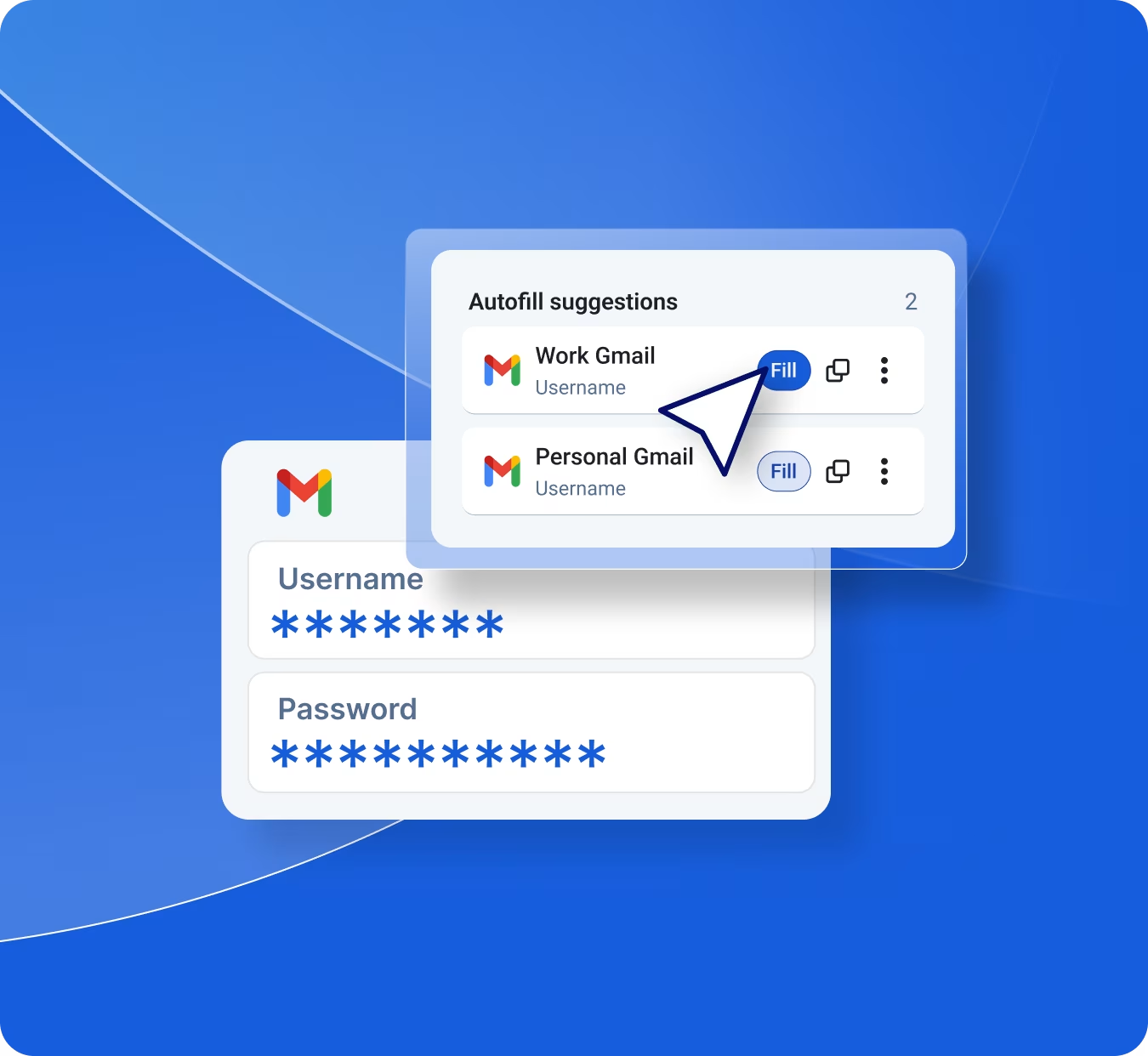
To share passwords, go to the Manage tab and select + Invite User. Pay close attention to the User Type setting: set this to User so the person can access the logins without being able to edit or delete them. Next, check Default Collection and make sure to enable Hide Your Shared Passwords. This allows the recipient to auto-fill credentials via the browser extension without actually seeing the raw password. Click Save to send an invitation to their email address.
Confirming Access & Adding Passwords
Once the recipient accepts the invite, you’ll need to confirm them. Go to Manage > People, click the gear icon next to their name, and select Confirm. You can revoke access at any time by selecting Remove.
With setup complete, you can add new credentials under the Vault tab by selecting + Add Item. If you want to share an existing password, locate it in your vault, click the gear icon, and select Share. Just remember to assign it to your shared organization before clicking Save.


Leave a Reply